3.4 Tractor Beam Operation & Basic Tricorder Operation
This memo explains how the tractor beam uses focused gravitons to push, pull, and hold objects, with its range and mass limits illustrated by a handy calculator, then begins describing the controls of the Standard Tricorder.
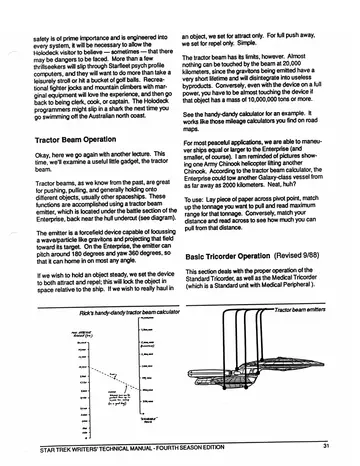
Tractor Beam Operation
Okay, here we go again with another lecture. This time, we'll examine a useful little gadget, the tractor beam.
Tractor beams, as we know from the past, are great for pushing, pulling, and generally holding onto different objects, usually other spaceships. These functions are accomplished using a tractor beam emitter, which is located under the battle section of the Enterprise, back near the hull undercut (see diagram). The emitter is a forcefield device capable of focussing a wave/particle like gravitons and projecting that field toward its target. On the Enterprise, the emitter can pitch around 180 degrees and yaw 360 degrees, so that it can home in on most any angle.
If we wish to hold an object steady, we set the device to both attract and repel; this will lock the object in space relative to the ship. If we wish to really haul in an object, we set for attract only. For full push away, we set for repel only. Simple.
The tractor beam has its limits, however. Almost nothing can be touched by the beam at 20,000 kilometers, since the gravitons being emitted have a very short lifetime and will disintegrate into useless byproducts. Conversely, even with the device on full power, you have to be almost touching the device if that object has a mass of 10,000,000 tons or more.
See the handy-dandy calculator for an example. It works like those mileage calculators you find on road maps.
For most peaceful applications, we are able to maneuver ships equal or larger to the Enterprise (and smaller, of course). I am reminded of pictures showing one Army Chinook helicopter lifting another Chinook. According to the tractor beam calculator, the Enterprise could tow another Galaxy-class vessel from as far away as 2000 kilometers. Neat, huh?
To use: Lay piece of paper or pencil to match up the tonnage you want to pull and read maximum range for that tonnage. Conversely, match your distance and read across to see how much you can pull from that distance.
Basic Tricorder Operation (Revised 9/88)
This section deals with the proper operation of the Standard Tricorder, as well as the Medical Tricorder (which is a Standard unit with Medical Peripheral).
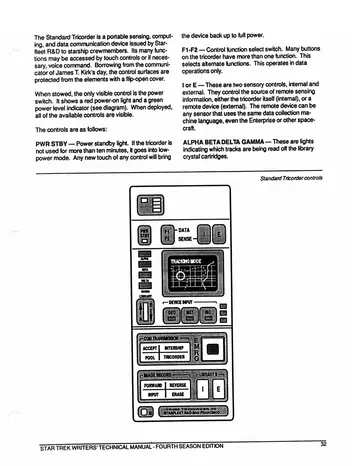
The Standard Tricorder is a portable sensing, computing, and data communication device issued by Starfleet R&D to starship crewmembers. Its many functions may be accessed by touch controls or if necessary, voice command. Borrowing from the communicator of James T. Kirk's day, the control surfaces are protected from the elements with a flip-open cover. When stowed, the only visible control is the power switch. It shows a red power-on light and a green power level indicator (see diagram). When deployed, all of the available controls are visible.
The controls are as follows:
PWR STBY — Power standby light. If the tricorder is not used for more than ten minutes, it goes into low-power mode. Any new touch of any control will bring the device back up to full power.
F1-F2 — Control function select switch. Many buttons on the tricorder have more than one function. This selects alternate functions. This operates in data operations only.
I or E — These are two sensory controls, internal and external. They control the source of remote sensing information, either the tricorder itself (internal), or a remote device (external). The remote device can be any sensor that uses the same data collection machine language, even the Enterprise or other spacecraft.
ALPHA BETA DELTA GAMMA — These are lights indicating which tracks are being read off the library crystal cartridges.
LIBRARY A/B — This is the slot for the cartridge (stowed in a pack in the back of the tricorder).
DISPLAY SCREEN — The blank area in the drawing is the main display, capable of showing any realtime, stored, or computed image (video, graphs, diagrams, etc.).
DEVICE INPUT — Three buttons labeled GEO, MET, and BIO select between external sensing devices. The three small lights to the right indicate which functions are active.
COM TRANSMISSION — The tricorder can receive and transmit pictures and data. The first button toggles between one way receive (ACPT) and networking (POOL). The second button toggles between ship-to-tricorder links (INTRSHP) and other tricorders (TRICRDR). Both modes can be active at the same time.
EMRG — This is an emergency “dump everything to the ship” button; it is a non-error-checking burst mode data transmission.
IMAGE RECORD — This button has four divisions: Forward, Reverse, Input, and Erase. These are image memory controls for sequential image files (approximately 120 frames per second sampling rate).
LIBRARY B — Library B is primarily an image storage area. I and E control the source of the images.
ID — This touchpad may be used to personalize a tricorder for default power-up settings, or as a security device for one-person-only operation.