2.7 Main Bridge
A tour of the Main Bridge and its command area, Conn and Ops, Tactical, aft stations, and Battle Bridge, together with first-season notes for the cast on how to operate the Enterprise's easy-to-use control panels.
Main Bridge
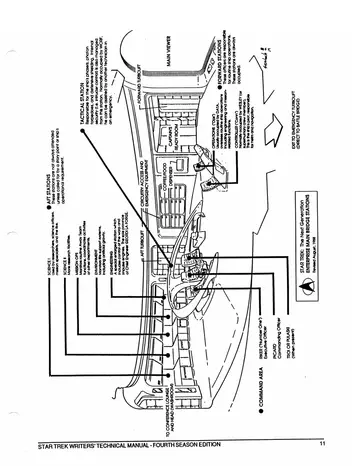
In brief: A tiny bubble at the top of the saucer-shaped primary hull of the Enterprise. This is the command center from which all the starship's activities are coordinated. See diagram on following page.
Command area: At the center of the Main Bridge. Provides seating and information displays for the Captain and two other officers.
Conn and Ops: These two forward stations are responsible for routine ship flight and operations.
Tactical: Responsible for weaponry, defense, and internal security.
Aft stations: A variety of special-purpose consoles including Science, Mission Operations, Environment, and Engineering.
Battle Bridge: In a battle situation, when the ship is split into two parts, command of the (lower) battle section is transferred to the Battle Bridge. In such an event, the main bridge crew (along with the captain) enter the EMERGENCY TURBOLIFT which transports them directly to the Battle Bridge, located on Deck 8. A replacement crew takes over responsibility for the Main Bridge, controlling the primary hull.
Notes on Operating the Enterprise's Control Panels
(The following material was distributed to the cast at the start of Star Trek's first season.)
The most important thing to remember in using the control panels on the new Starship Enterprise is that they're very easy to use. Like certain brands of automatic cameras, they're so advanced, they're simple.
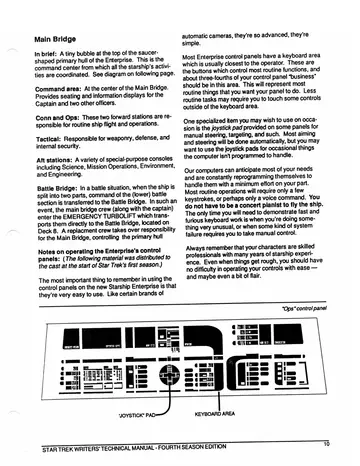
Most Enterprise control panels have a keyboard area which is usually closest to the operator. These are the buttons which control most routine functions, and about three-fourths of your control panel “business” should be in this area. This will represent most routine things that you want your panel to do. Less routine tasks may require you to touch some controls outside of the keyboard area.
One specialized item you may wish to use on occasion is the joystick pad provided on some panels for manual steering, targeting, and such. Most aiming and steering will be done automatically, but you may want to use the joystick pads for occasional things the computer isn't programmed to handle.
Our computers can anticipate most of your needs and are constantly reprogramming themselves to handle them with a minimum effort on your part. Most routine operations will require only a few keystrokes, or perhaps only a voice command. You do not have to be a concert pianist to fly the ship. The only time you will need to demonstrate fast and furious keyboard work is when you're doing something very unusual, or when some kind of system failure requires you to take manual control.
Always remember that your characters are skilled professionals with many years of starship experience. Even when things get rough, you should have no difficulty in operating your controls with ease — and maybe even a bit of flair.